
Features
Chat Input
How to use the Kumari AI chat input modes, model tagging, and shortcuts
The chat input is the control center for everything in Kumari AI. Beyond typing your message, you can switch modes, tag models or agents, and attach files all without leaving the input field.
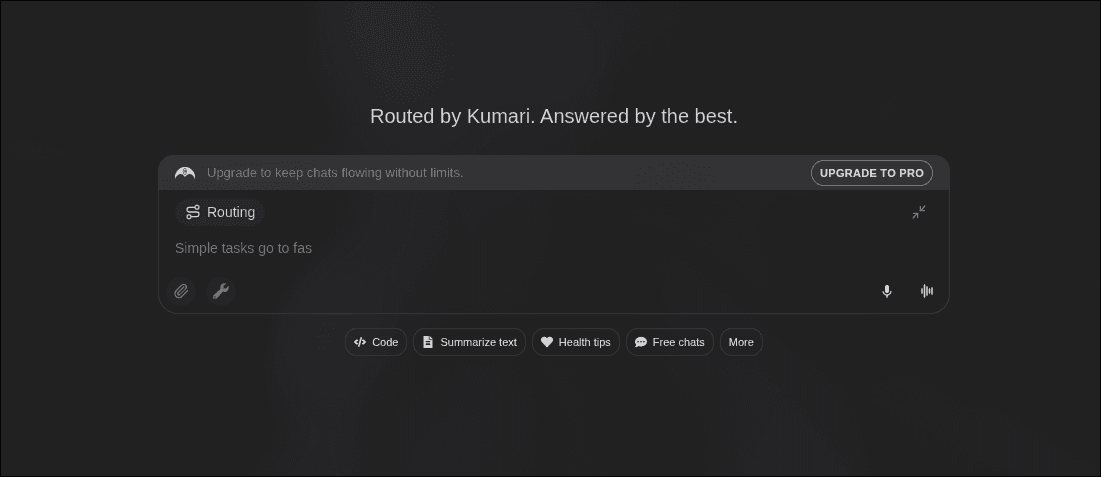
Switching Modes with /
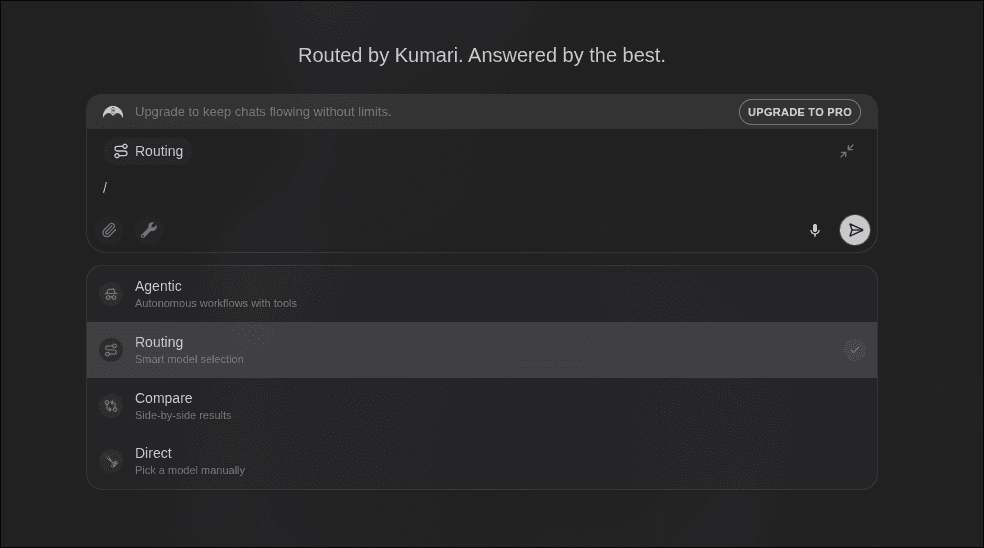
Type / in the chat input to open the mode picker. Select any of the four available modes:
| Command | Mode |
|---|---|
/compare | Compare responses from up to 4 LLMs |
/routing | Auto-select the best LLM for your prompt |
/direct | Manually choose a specific LLM |
/agentic | Delegate to a specialized agent |
The active mode is always shown as a badge on the input. You can switch modes at any point even mid-conversation.
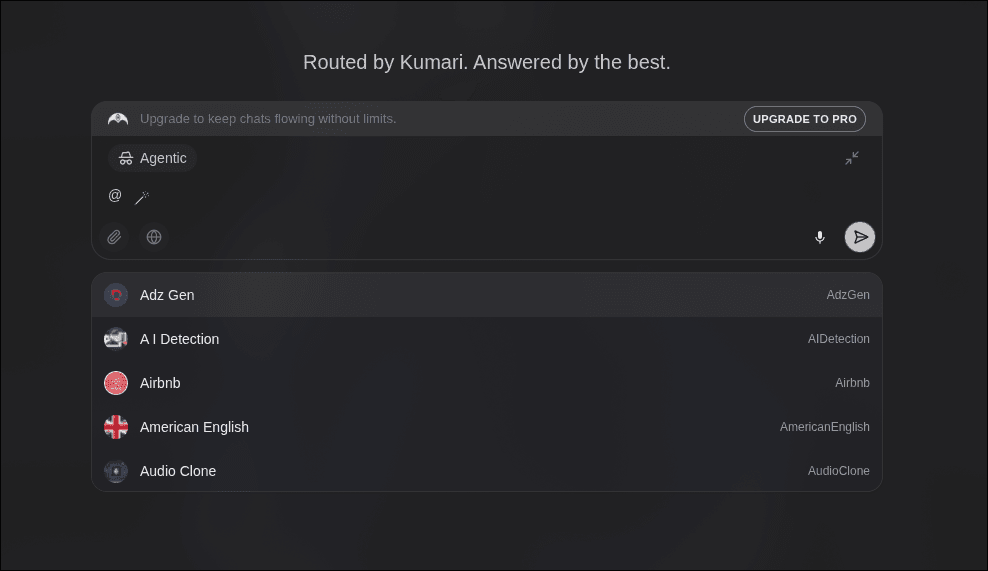
Tagging Models & Agents with @
Type @ to bring up a list of available models and agents. Select one to pin it to your message.
- In Direct mode,
@selects which LLM to use (e.g.@gpt-4o,@claude-sonnet) - In Agentic mode,
@selects which agent to invoke (e.g.@researcher,@finance) - In Compare mode,
@lets you pick specific models to include in the comparison
Attaching Files
You can attach files to your message to give the model additional context. Supported file types include documents, images, and more. Uploaded files also appear in your Media library.
Keyboard Shortcuts
| Shortcut | Action |
|---|---|
Enter | Send message |
Shift + Enter | New line |
/ | Open mode picker |
@ | Open model / agent picker |
Esc | Close picker |