
Compare Mode
Run your prompt across multiple LLMs simultaneously and compare their responses side by side
Compare Mode lets you send the same prompt to up to 4 different LLMs at once and see their responses side by side. It's useful for evaluating output quality, finding the best model for a specific task, or just exploring how different models think.
How to Use Compare Mode
Open the mode picker
Type / in the chat input and select Compare from the list.
Select your models
Type @ to tag the models you want to include. You can add up to 4 models. If you don't pick any, Kumari AI will auto-select a diverse set for you.
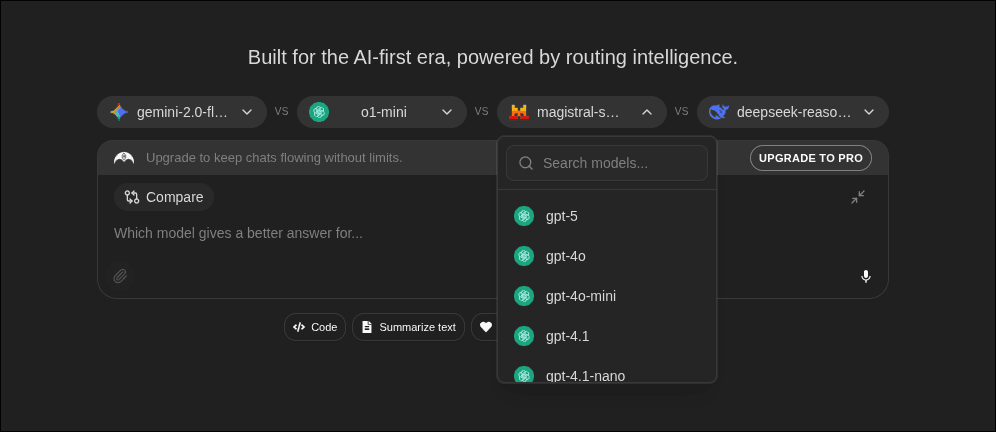
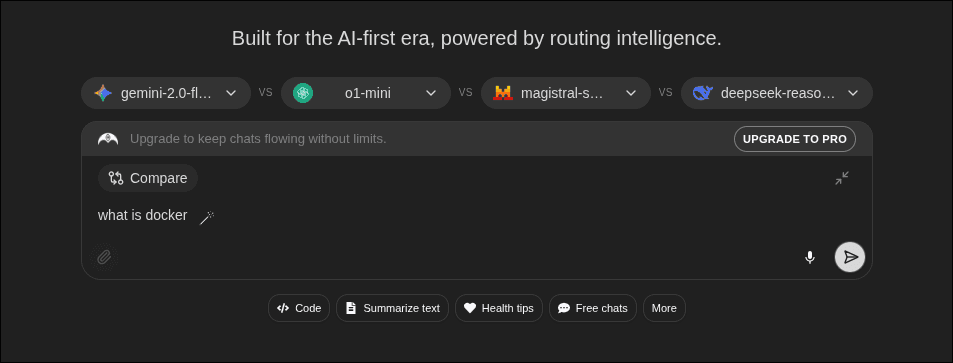
Send your prompt
Type your message and hit send. All selected models receive the same prompt simultaneously.
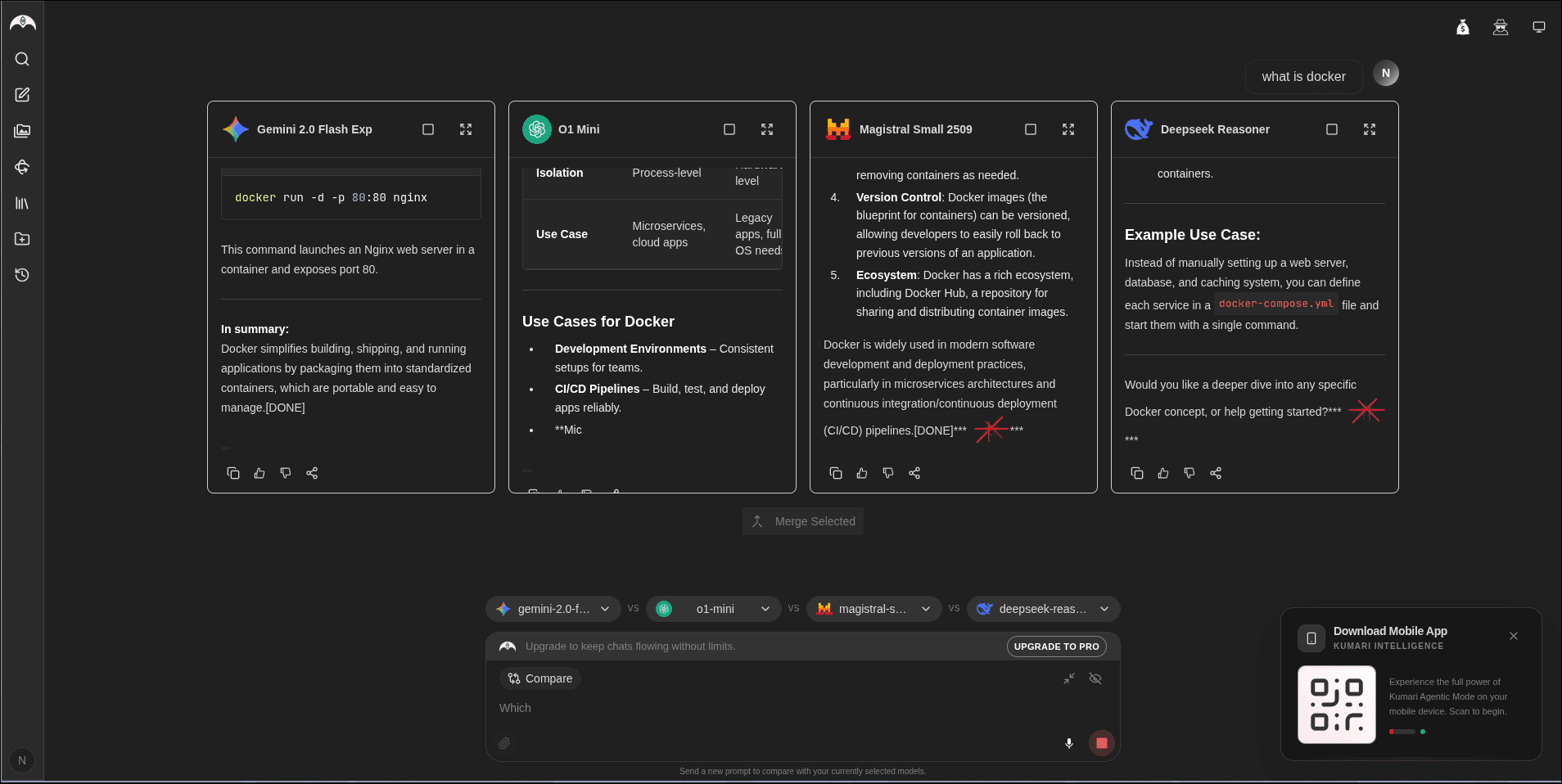
Review the responses
Responses appear in a side-by-side grid. You can expand any response to read it in full.
Supported Models
Any model available in Kumari AI can be used in Compare Mode. Mix and match across providers for example, compare GPT-4o against Claude Sonnet against Gemini in one shot.
Tips
- Use Compare Mode when you're not sure which model handles a task best
- Great for creative tasks where you want different "voices" or approaches
- Works well for benchmarking run the same coding or reasoning prompt across models and see who wins