
Direct Mode
Choose exactly which LLM handles your prompt full control, no routing
Direct Mode puts you in full control. You pick the model, you send the message, and that model responds. No automatic routing, no guessing just a straight line between you and the LLM of your choice.
How to Use Direct Mode
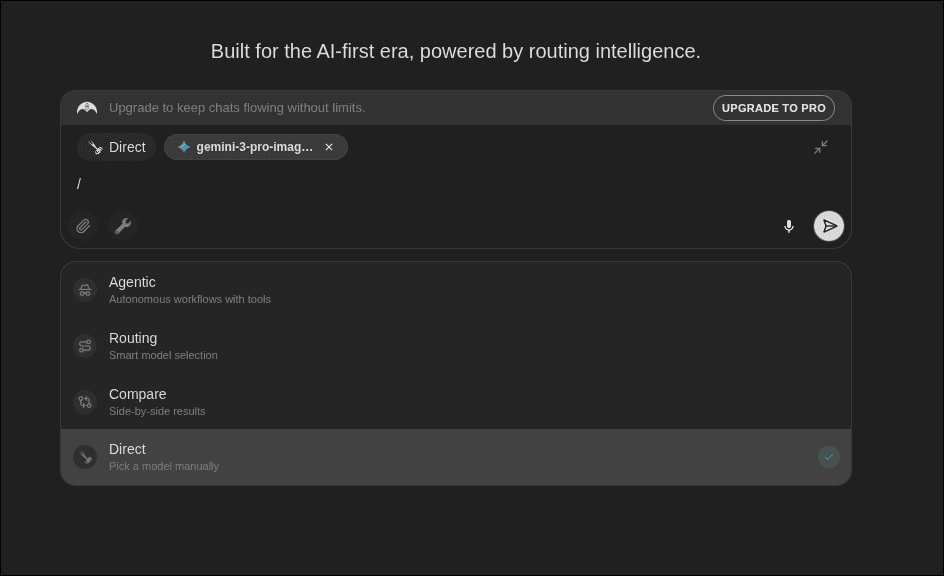
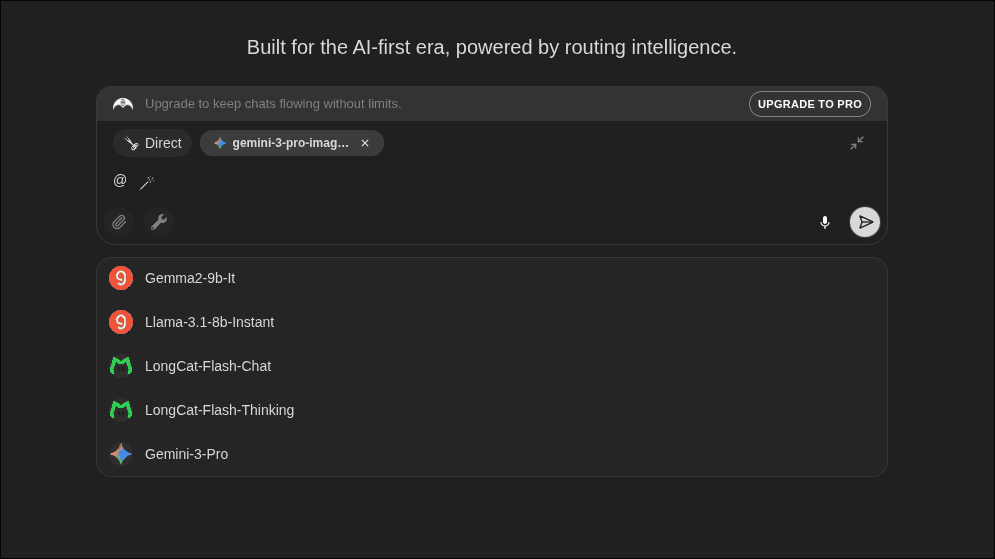
Pick your model
Type @ and select from the available models. The selected model is pinned to the input and shown as a badge.
Send your prompt
Your message goes directly to the selected model. The response is labelled with the model name.
Changing Models Mid-Conversation
You can switch models at any point in the conversation just type @ and pick a new one. The new model will have access to the full conversation history.
Available Models
Direct Mode gives you access to all models available in Kumari AI across providers including OpenAI, Anthropic, Google, and more. The list is updated as new models are released.
When to Use Direct Mode
- When you know exactly which model you want
- For side-by-side testing within a single conversation (switch models between messages)
- When reproducing a specific result that worked with a particular model
- When you need a model with specific capabilities (e.g. vision, long context, code)